Features
Docker
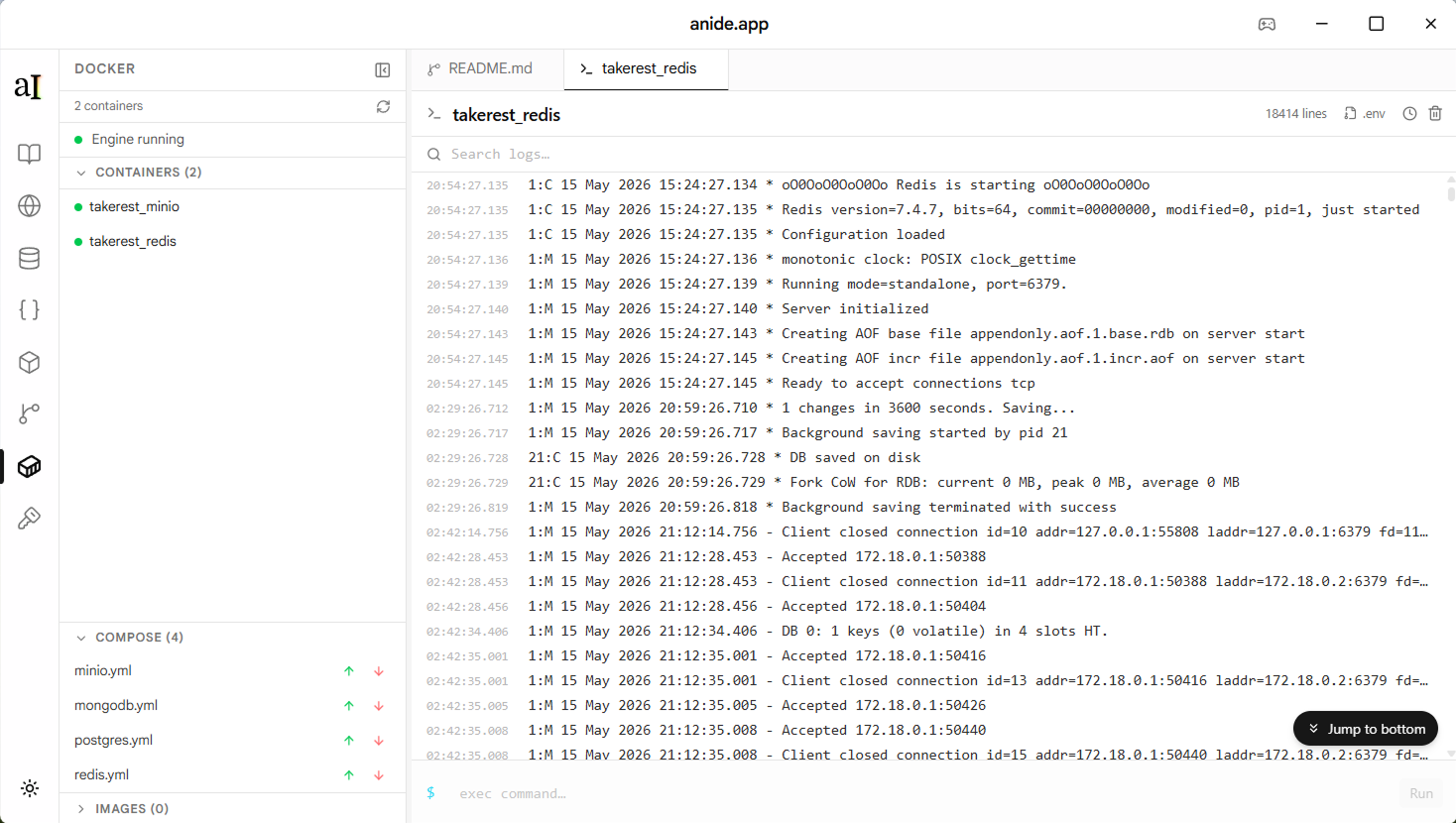
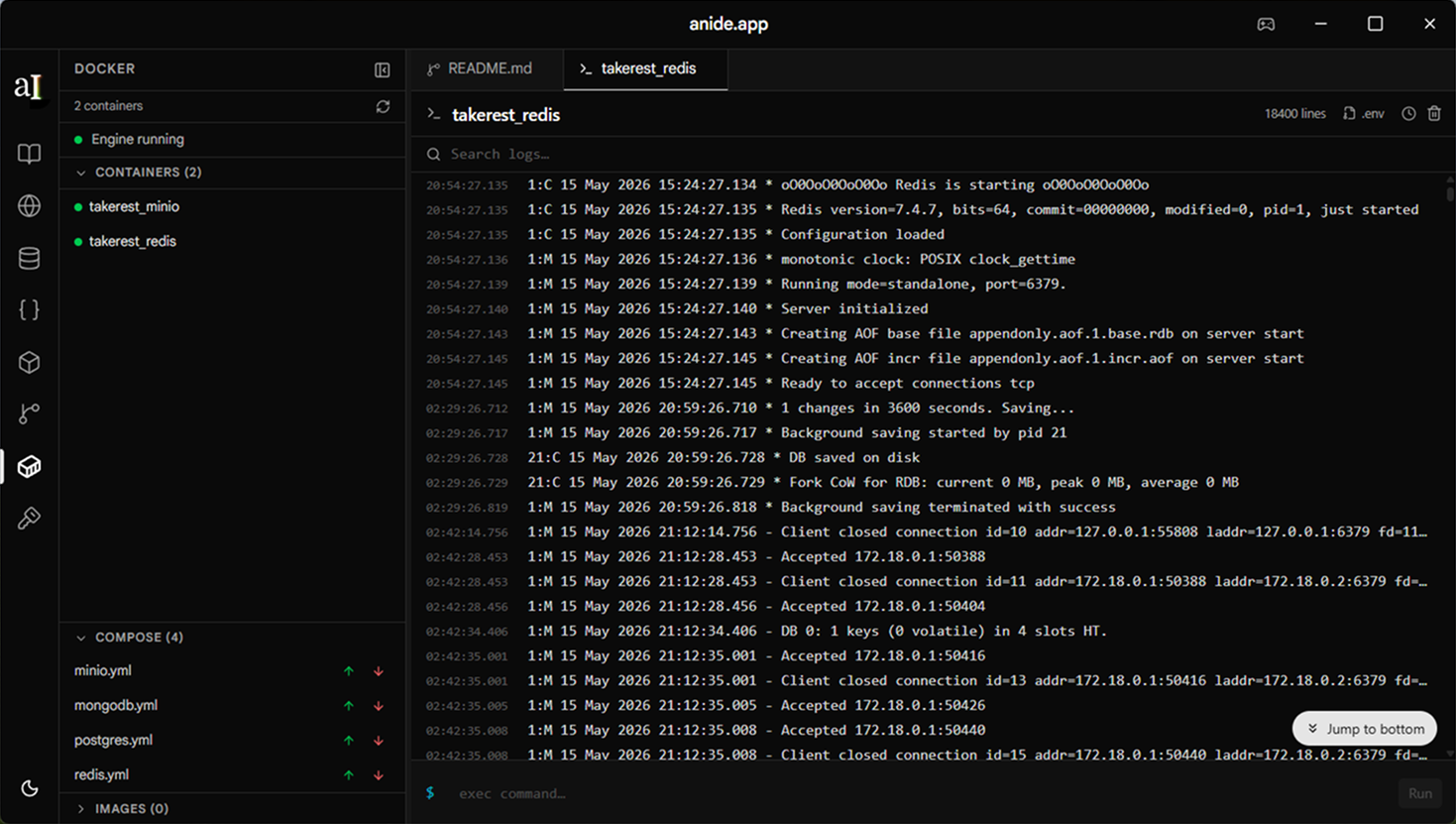
Manage containers, stream logs, control Compose stacks, and browse images and volumes — without switching to Docker Desktop or a terminal.
What it does
The Docker panel connects to your local Docker engine via the Docker socket. It shows all running and stopped containers, lets you start, stop, restart, and tail logs in real time — all in context with the rest of your project workflow.
If your project uses Docker Compose, Anide detects the Compose file and gives you one-click up and down controls for the whole stack.
Features
Container list
See all containers — running and stopped — with their name, image, status, and port mappings at a glance. Color-coded status badges make it easy to spot what's up and what's down without reading the details.
Start, stop, restart
Control any container with a single click. Start a stopped container, stop a running one, or restart it to pick up config changes — no terminal command needed.
Live log streaming
Click any container to open its log stream. Logs update in real time via the Docker events API. You can pause streaming, clear the buffer, and copy selected lines. Timestamps are shown in your local timezone.
Docker Compose
Anide detects docker-compose.yml and compose.yml in your project root.
From the Compose section you can bring the entire stack up or down with one click,
and see which services belong to the stack highlighted in the container list.
Image browser
Browse all local images with their tag, size, and creation date. Pull new images
and delete unused ones to reclaim disk space — no docker image ls required.
Volume browser
coming soonList all named volumes with their driver and mount point. Quickly identify volumes associated with your project and remove orphaned ones.
Port mapping viewer
coming soonEach running container shows its exposed ports mapped to host ports. Click a port to open it in the REST client — handy for testing an API running inside a container without copying addresses manually.
Container status indicators
runningexitedstartingunhealthypausedHow to access it
Open a project
Open any folder in Anide. The Docker panel is available regardless of whether the project uses Docker.
Click the Docker icon
In the activity bar on the left, click the container icon to open the Docker panel. Anide will connect to the local Docker engine automatically.
Select a container
Click any container in the list to view its logs and port mappings in the main area.
Use Compose controls
If a Compose file is detected in the project root, the Compose section appears at the top of the panel with up/down buttons.
Requirements
Docker must be running
Anide connects to the Docker socket (/var/run/docker.sock on macOS/Linux,
named pipe on Windows). Docker Desktop, OrbStack, Rancher Desktop, or any compatible
runtime will work.
No additional setup
No credentials, no config file, no Docker CLI required. If Docker is running, the panel connects automatically when you open it.
Limitations
- Remote Docker hosts (via TCP or SSH tunnel) are not yet supported.
- exec / shell-into-container is not available in the UI — use a terminal for interactive sessions.
- Building images from a Dockerfile is not yet supported.
- Docker Swarm and Kubernetes are out of scope.