Features
Git
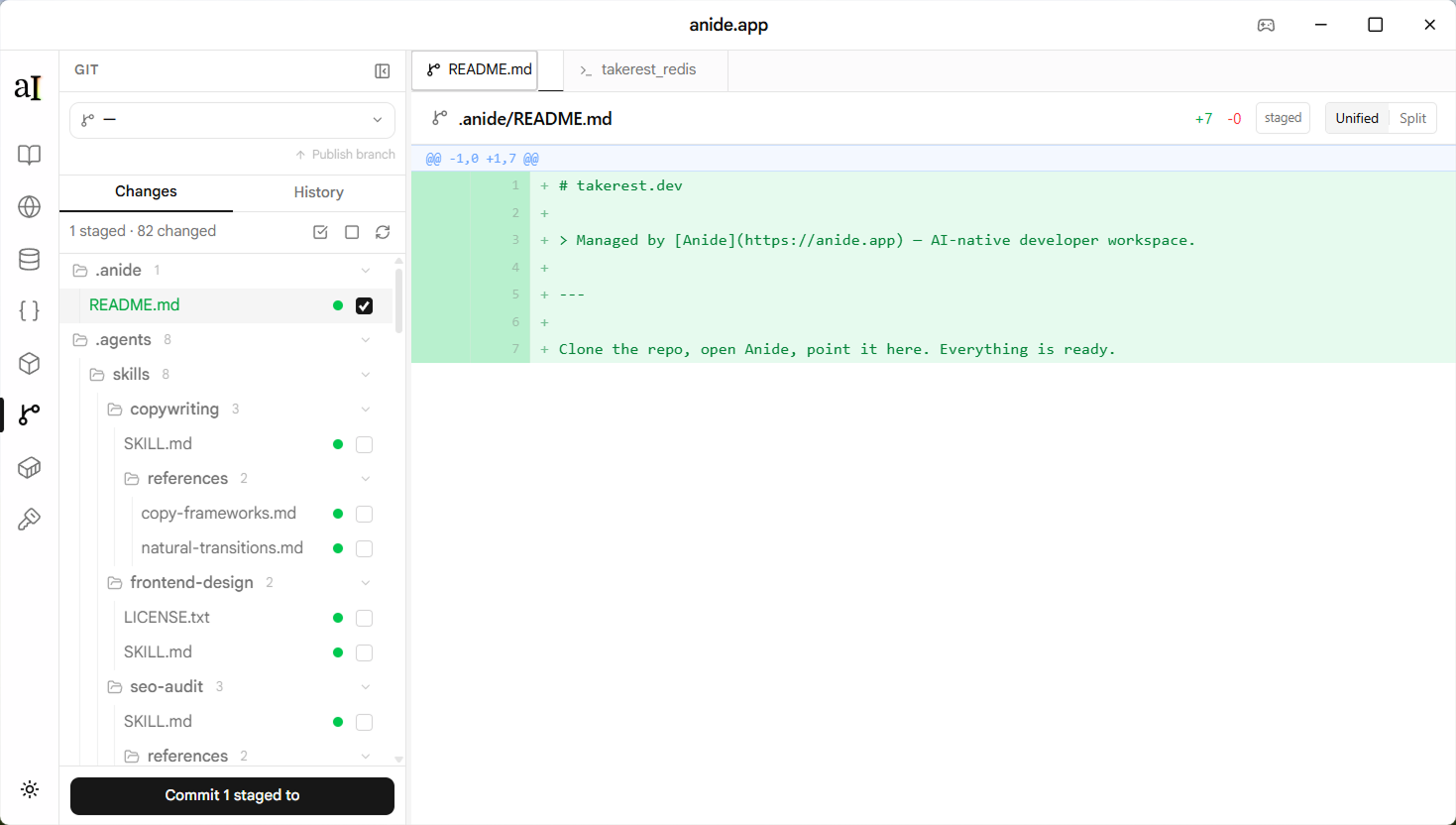
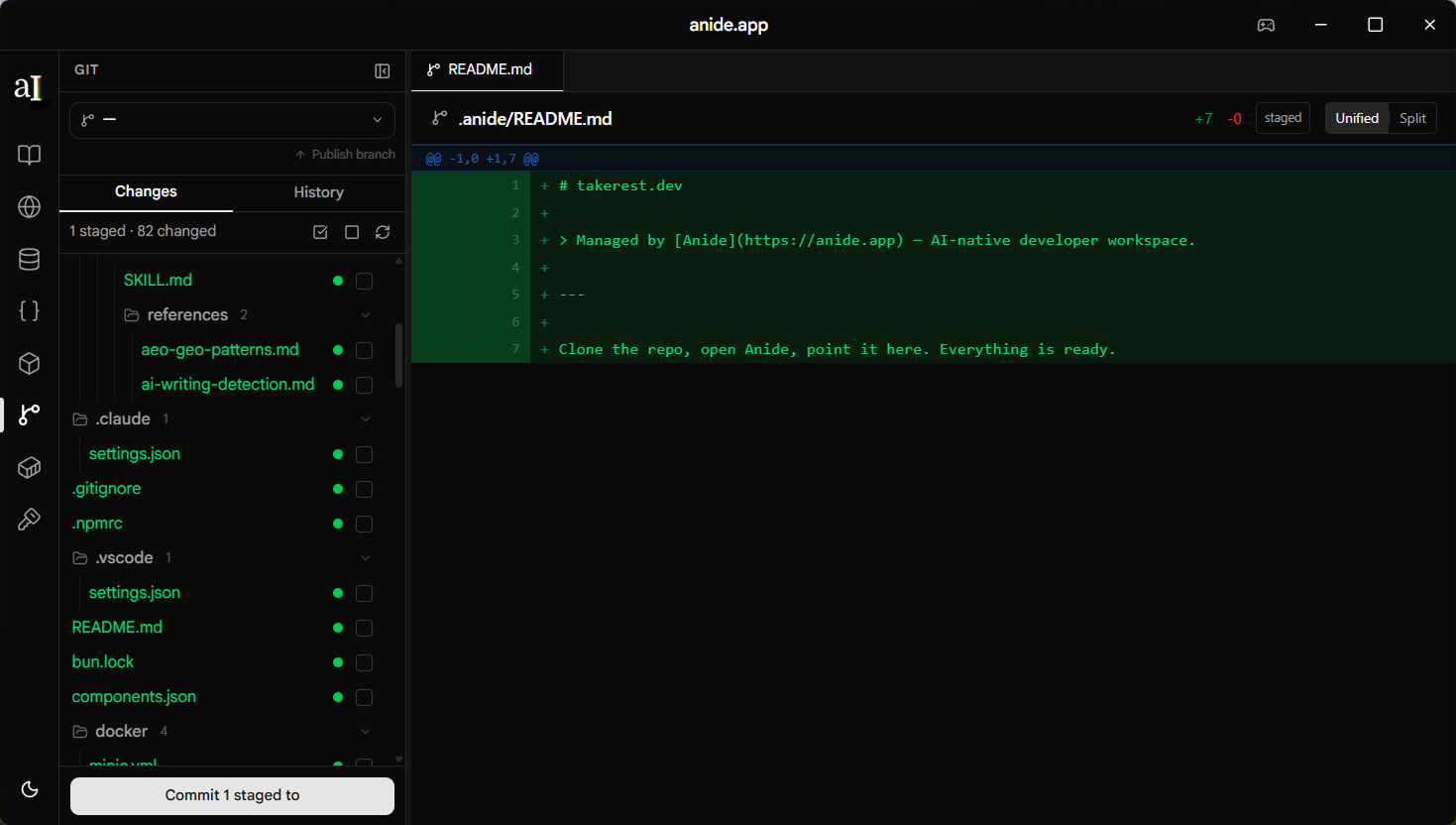
Stage, commit, push, pull, and branch — all from inside TakeRest, without switching context. Find a bug while testing an API, fix it, and commit in one flow.
What it does
The Git panel gives you a full staging workflow, a commit history browser, branch management,
and remote sync — all powered by a native Rust backend using gix and the system git CLI.
No external Git GUI required.
Changes, diffs, and history are shown in context with the rest of your project — the same repo your API requests, queries, and env files live in.
Features
Branch management
View all local and remote branches. Switch branches with one click — if you have uncommitted changes you can carry them along or stash them first. Create new branches from any base, delete local branches, and publish branches to the remote directly.
Staging & commits
See all changed files in a hierarchical tree with color-coded status indicators (green = added, yellow = modified, red = deleted, blue = renamed). Stage or unstage individual files or everything at once. Commit with a required summary and an optional body.
Diff viewer — unified & split
Click any changed file to open its diff. Toggle between unified and side-by-side split view. Large diffs are paginated (10,000 lines per page). Image changes show a before/after comparison instead of a text diff.
Commit history
Browse the 200 most recent commits with author, hash, and relative timestamp. Click any commit to see the full metadata, the list of changed files, and a diff for each file — same unified/split toggle available.
Remote sync
The branch header shows how many commits your branch is ahead or behind the remote. Fetch, pull, and push from the same bar. Push is disabled when you're behind — you'll be prompted to pull first to avoid conflicts.
Conflict & merge handling
coming soonWhen a merge produces conflicts, a warning banner shows the number of conflicted files. You can abort the merge directly from the panel to restore the pre-merge state.
File status colours
Branch switching with uncommitted changes
When you switch to another branch while you have uncommitted changes, TakeRest asks what to do:
Bring my changes to the new branch
Carries your working-tree changes to the target branch (equivalent to git checkout -m). Use this when you started working on the wrong branch.
Stash changes & switch
Saves your changes to the stash, switches branch, leaving the new branch clean. Stash management (pop, drop) is not yet in the UI — use the terminal for that.
File context menu
Right-click any file in the Changes panel to get quick actions:
How to access it
Open a project
Open any folder that is a Git repository. TakeRest detects the repo automatically.
Click the Git icon
In the activity bar on the left, click the Git branch icon to open the Git panel.
Switch between Changes and History
Use the two tabs at the top of the panel to move between the staging view and the commit history.
Click a file to view its diff
Select any file in the Changes list or in a commit's file list to open the diff in the main editor area.
Limitations
- History is capped at 200 commits. Older commits require the terminal.
- Stash management (pop, drop, list) is not yet in the UI.
- Interactive rebase is not supported — use the terminal.
- Submodules are not yet handled.
- Force push is not exposed in the UI. The underlying command uses --force-with-lease if ever called with force, but this is not triggered by any UI action.