Features
Docs
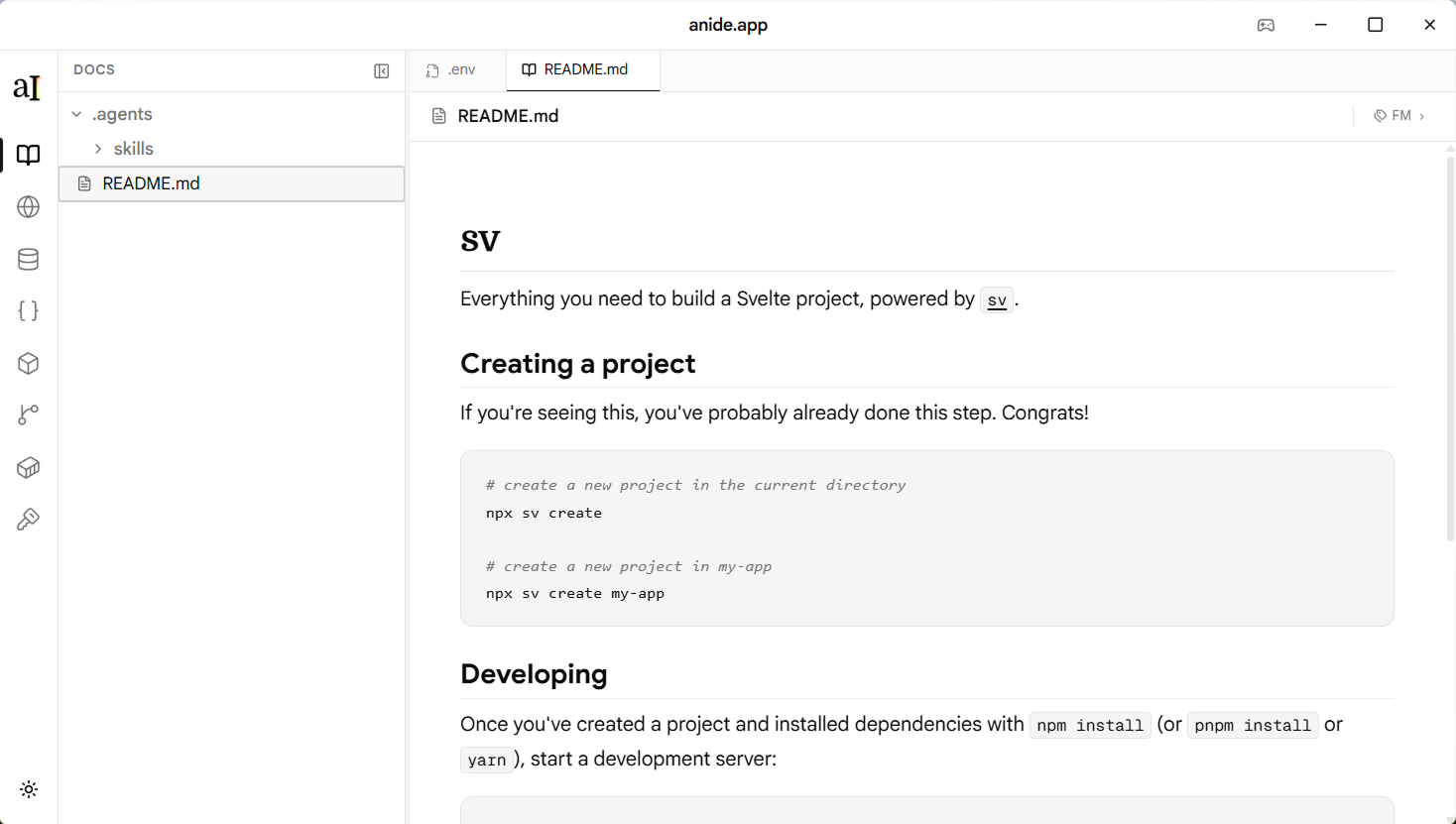
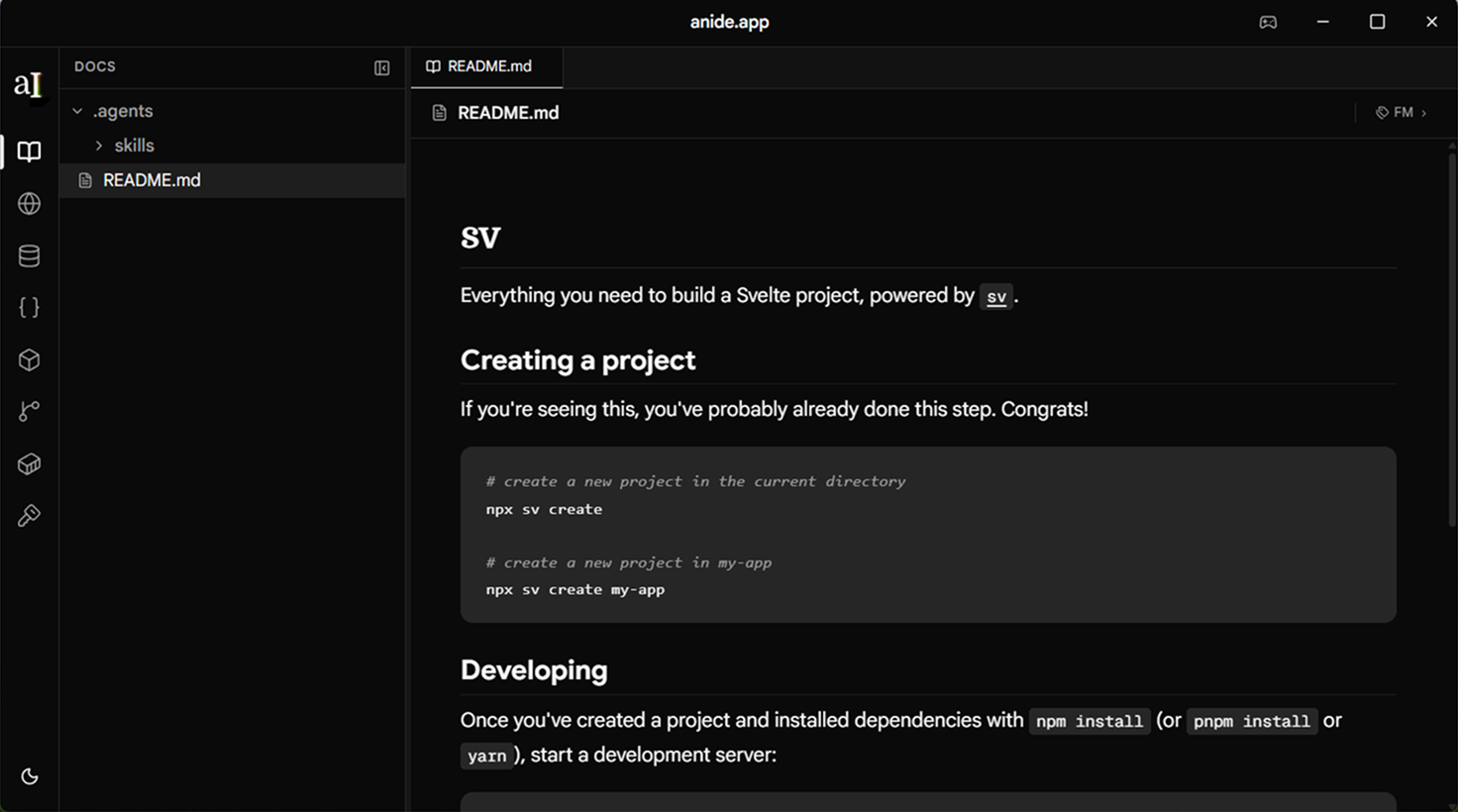
Browse every markdown file in your project. Click to open, edit inline, then save or discard. Front matter is parsed and editable separately.
What it does
The Docs panel scans your project for all .md files
and shows them in a file tree on the left. Select any file to open it in the editor — one clean view,
no mode switching. Make your edits, then hit Save to write to disk or Discard to revert.
This is not just a README viewer. Agent instructions, changelogs, ADRs, wiki pages — any markdown in your repo is accessible here, including files in subfolders.
Flowcharts & diagrams
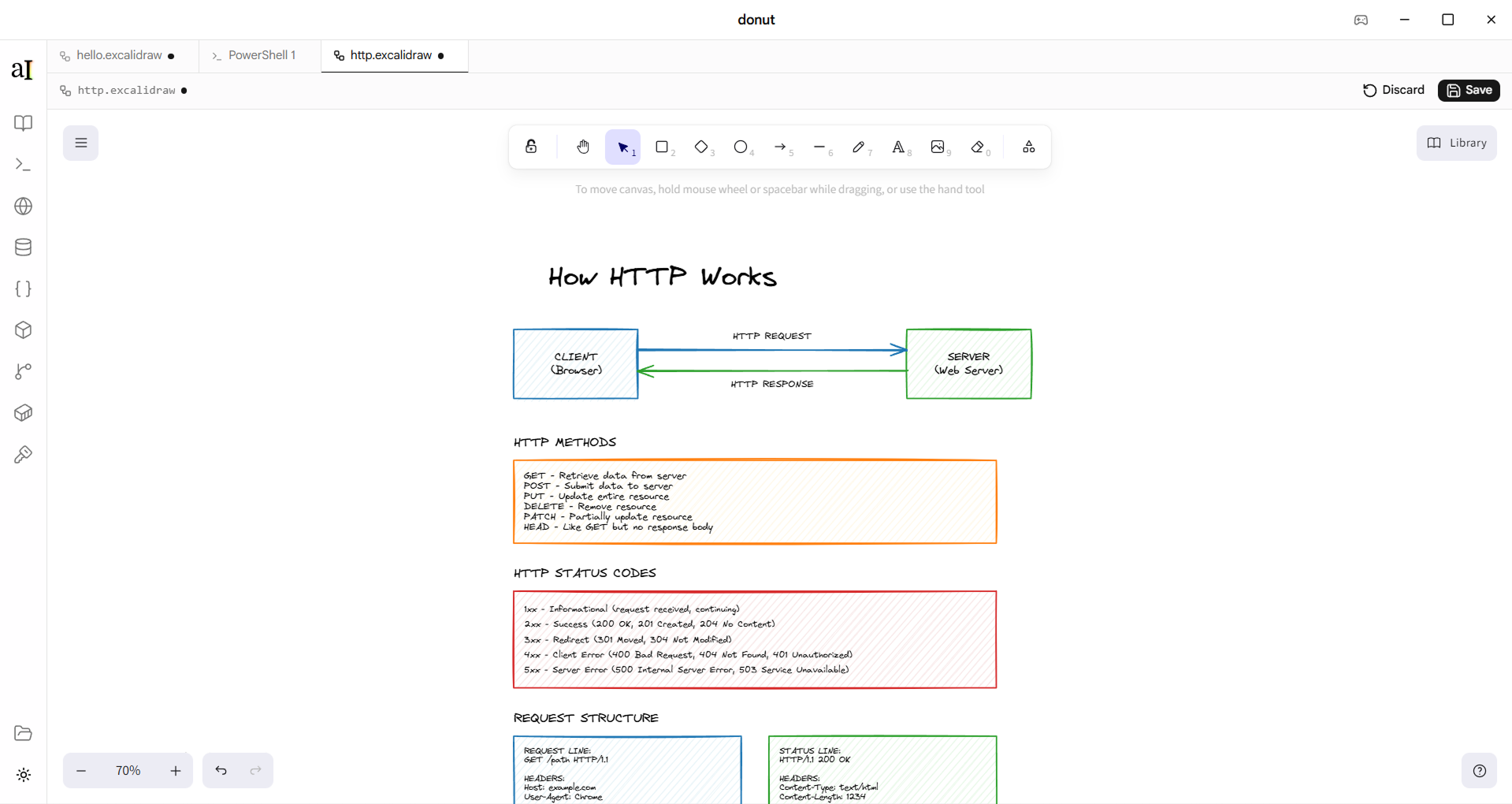
Anide renders .excalidraw files natively in the Docs panel.
Drop a flowchart, system diagram, or architecture sketch anywhere in your repo and open it
alongside your markdown — same panel, same file tree. No separate app, no browser tab.
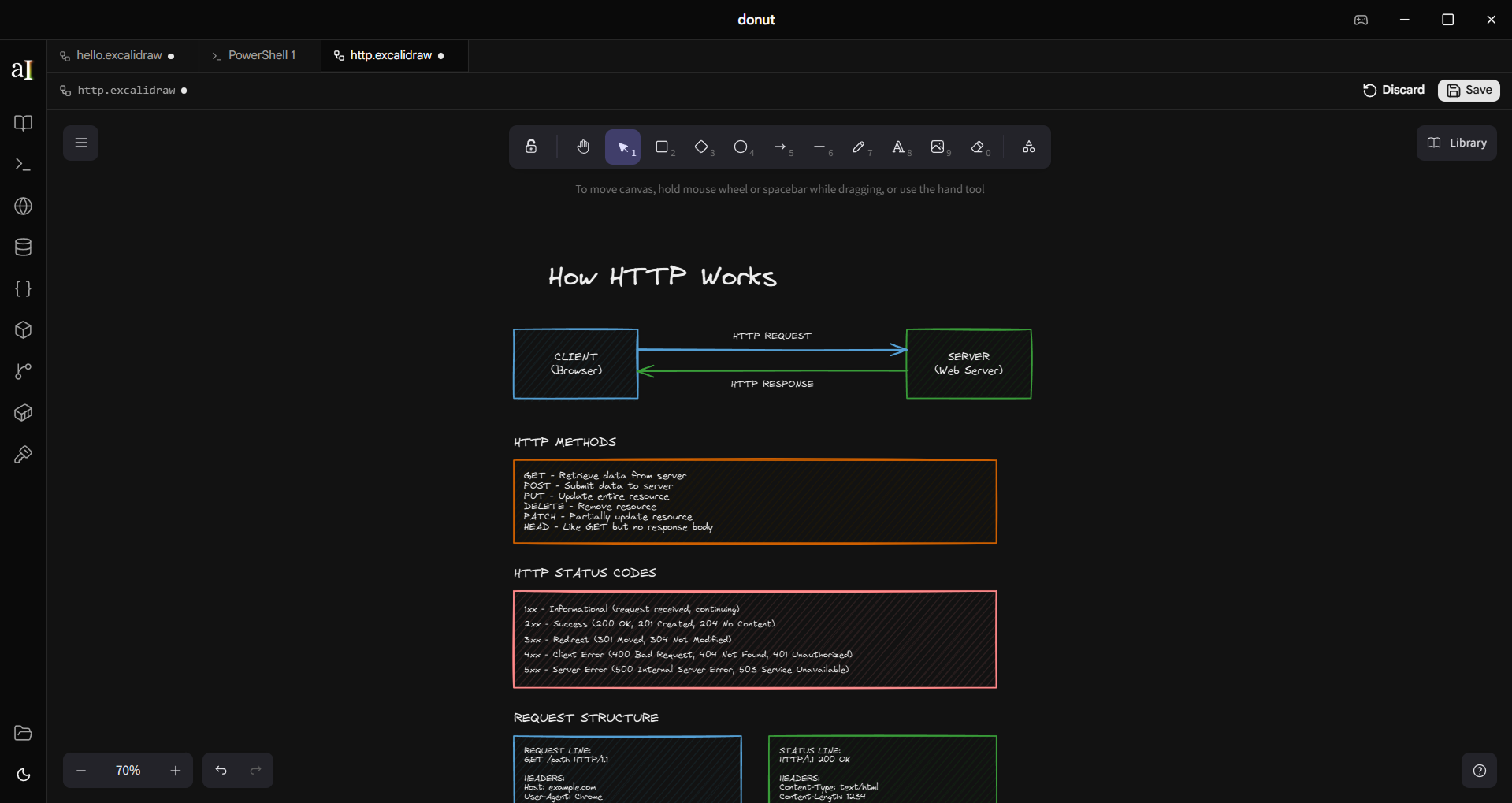
The diagram renders in your current theme — light or dark — with the full Excalidraw canvas. Pan, zoom, and inspect exactly as you would in the Excalidraw editor. In-app editing is on the roadmap; for now it's the fastest way to reference a diagram while the AI is building.
Features
All markdown files, not just README
The file tree shows every .md file in your project —
including nested files in subfolders. Agent instructions, ADRs, changelogs, wikis — all accessible in one place.
Inline editor — no mode switching
There is no raw / preview / edit split. You get one editor. Write markdown directly, see syntax highlighting, and save when you're done. Clean and focused.
Save and discard
Changes are held in memory until you explicitly Save (writes to disk) or Discard (reverts to the last saved state). Nothing is auto-saved — you stay in control.
Front matter — display and edit
Files with YAML front matter show an FM indicator in the header. Click it to expand the front matter into a structured key-value editor — no need to hand-edit raw YAML. Changes save with the rest of the file.
Excalidraw diagrams
.excalidraw files are rendered natively — flowcharts,
architecture diagrams, and system sketches open right in the Docs panel. Full canvas with pan and zoom,
auto-themed to match light or dark mode.
Front matter
Any file that starts with a YAML front matter block is detected automatically:
---
name: backend-agent
model: claude-opus-4-7
temperature: 0.2
tools:
  - read_file
  - run_command
---

You are a backend engineer working on this project.
Always check the schema before writing migrations.
The front matter block is parsed out and shown as editable fields above the markdown body.
The body editor only shows the content below the --- delimiter.
How to access it
Open a project
Open any folder. Anide scans for .md files automatically — no configuration needed.
Click the Docs icon
In the activity bar on the left, click the Book icon to open the Docs panel and file tree.
Select a file
Click any file in the tree to open it in the editor. Files with front matter show an FM badge.
Edit, save or discard
Make your changes. Use the Save button to write to disk, or Discard to revert all edits.