Features
Terminal
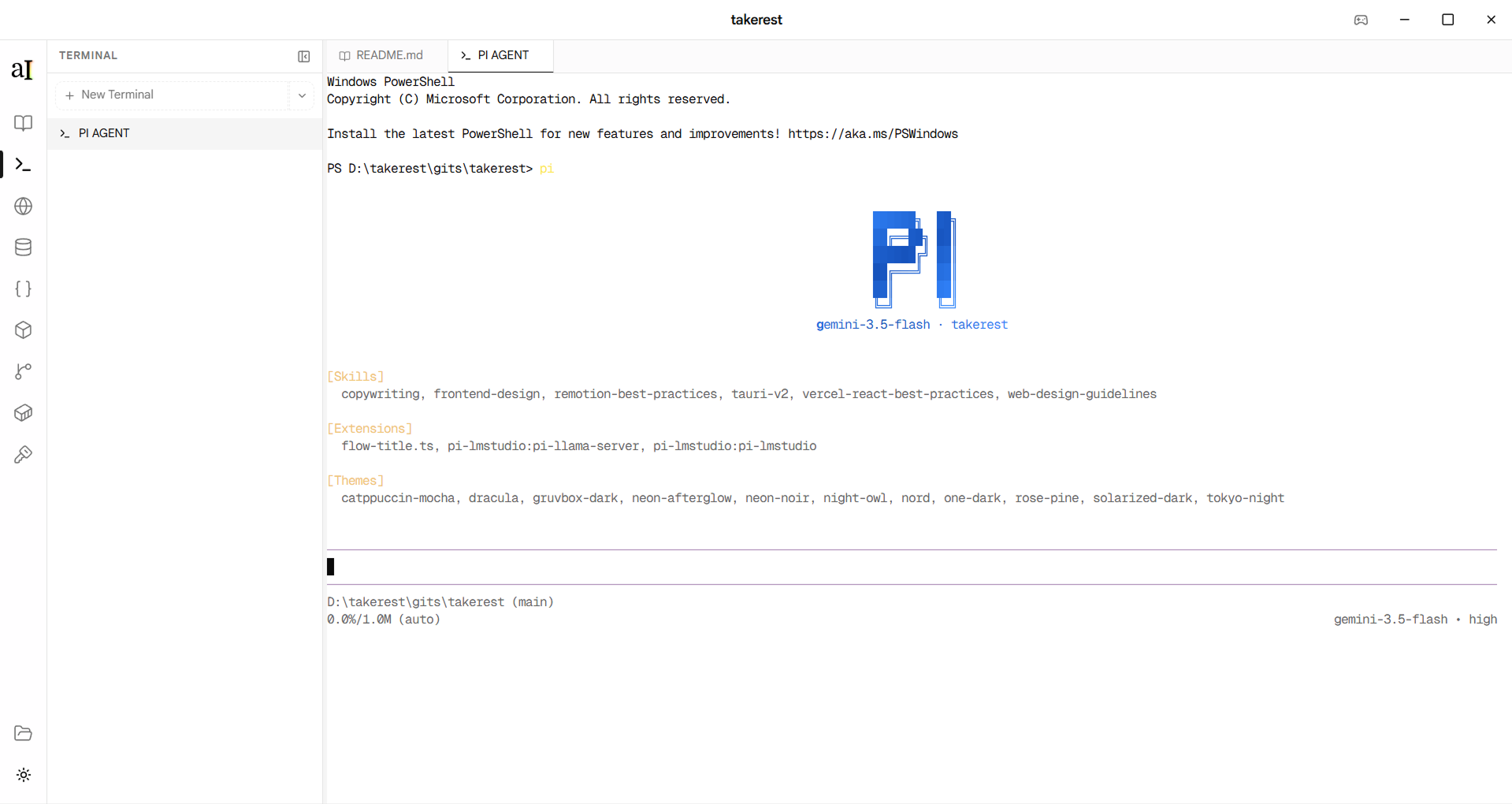
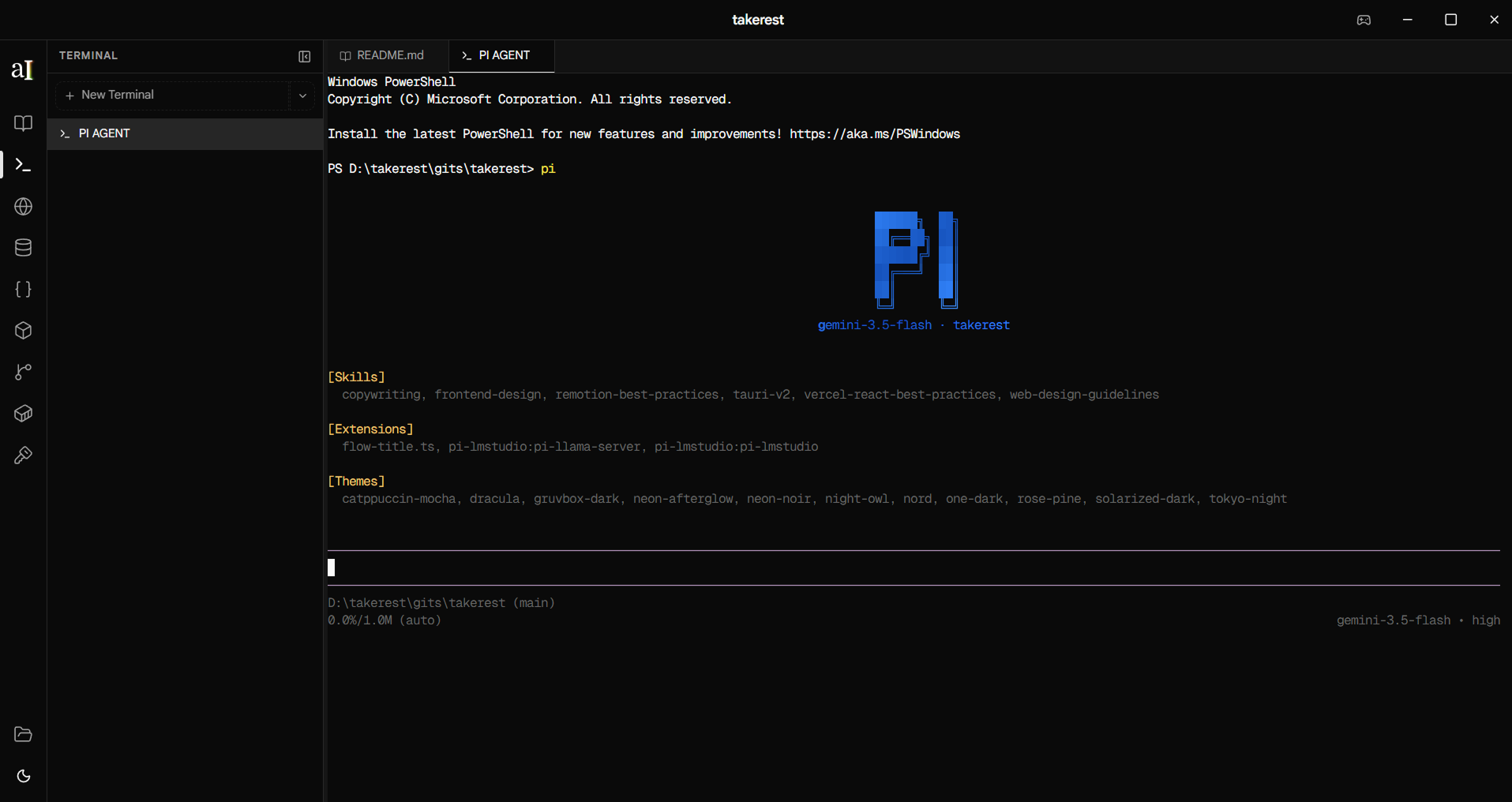
A full PTY-backed terminal inside Anide. Run Claude Code, Codex, Grok, or any CLI tool — watch the AI work, interrupt when needed, and run your own commands in the same session.
What it does
The Terminal panel spawns real shell sessions using a native PTY backend written in Rust. Each tab is a live process — not a simulation. Output renders through xterm.js with WebGL acceleration, giving you a flicker-free, high-FPS terminal that stays out of the way while your AI tool runs.
Because the terminal lives inside the same app as your Git panel and diff viewer, you can run an AI tool, watch the diff appear, stage what you want, and commit — without switching windows.
Features
Real PTY — not a fake shell
Built on portable-pty, a cross-platform Rust crate.
Every tab spawns a real pseudo-terminal process. Interactive programs, colour output, cursor movement,
and full terminal escape sequences all work correctly.
WebGL rendering
Rendered via xterm.js with the WebGL addon for GPU-accelerated output. If WebGL is unavailable, it falls back to canvas rendering automatically. 10,000-line scrollback. Font: Geist Mono.
Multiple tabs
Open as many terminal tabs as you need. Each tab gets its own session ID and PTY process. Tabs are named automatically ("Terminal 1", "Terminal 2", …) and can be renamed or closed independently.
Shell selection
Anide detects the shells available on your system and lets you pick one when opening a new tab. The dropdown shows the shell name, program path, and any arguments. See the shell detection table below for what each platform supports.
Theme-aware colours
Terminal background and foreground colours are read from the app's CSS custom properties and update automatically when you switch between light and dark mode. No restart required.
Clickable URLs
URLs printed in the terminal are detected and made clickable via the xterm.js WebLinks addon. Clicking opens the link in your system browser via the native OS opener.
Shell detection by platform
Tab management
How to access it
Open a project
Open any folder. The terminal always starts in the project root.
Click the Terminal icon
In the activity bar on the left, click the Terminal icon to open the terminal panel.
Pick a shell
Click the + button, select a shell from the dropdown, and a new tab opens immediately.
Run your AI tool
Run Claude Code, Codex, or any CLI. Switch to the Git panel to see the diff as files change.